The Eleven v4 Audio Tags list: Try them, then write your own
Mirrored from ElevenLabs for archival readability. Support the source by reading on the original site.
Eleven v4 is a breakthrough Text to Speech model that transforms text into a performance. Audio Tags let you direct that performance with granular control over its emotional output. Place a bracketed, natural-language cue like [whispers] or [excited] and listen as v4 changes the delivery to match.
This ElevenLabs Audio Tags list covers every emotion in the full Eleven v4 emotional range, along with tags for delivery, pacing, reactions, accents, and sound effects. Once you know the basics, we’ll also show you how to write your own tags in plain language.
Discover the emotions of Eleven v4
Listen to the rangeSummary
- Audio Tags are natural-language signals in square brackets that Eleven v4 reads as performance direction, changing how it delivers the words that follow.
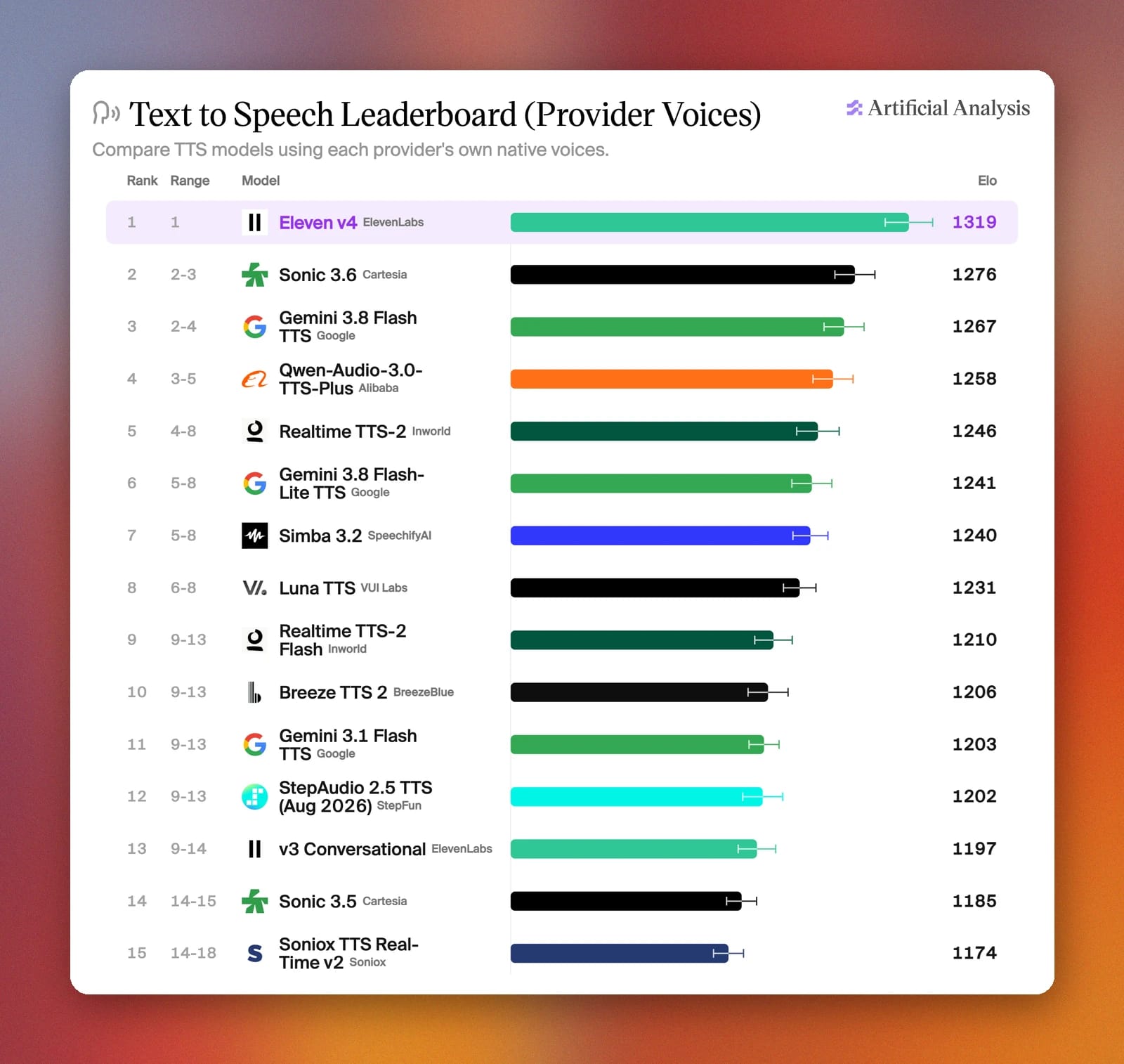
- Eleven v4 is the top-ranked model in the Artificial Analysis Speech Arena [September 2026] and Audio Tags let you direct that performance line by line.
- The Eleven v4 emotional range wheel lets you hear different emotions for a rapid overview of the model's abilities.
- Tags aren't limited to a fixed list, meaning you can write your own by combining qualities, like [whispering, fearful], or describing the situation or character behind a line.
- Audio Tags work via ElevenAPI on Eleven v4, Eleven v4 Turbo, and Eleven v3.
What are ElevenLabs Audio Tags?
Audio Tags are natural-language cues that you can embed into your writing inside of square brackets. Eleven v4 reads these as performance markers, using them as direction that alters how it speaks certain words or phrases. You write them inline with your script in the ElevenLabs Text to Speech app and watch as our models bring them to life.
Eleven v4 is the top-ranked TTS model in the Artificial Analysis Speech Arena, where listeners vote on the most natural-sounding text to speech.1 Audio Tags let you take that performance even further by direction exactly how each line is delivered.
Here’s how to use Audio Tags in a script:
- Place a tag before the words it affects: When you write “[shouts] I can’t believe you said that to me,” the entire line is shouted.
- Emotion carries forward: When you add a tag, its emotion carries forward across the line, meaning you only need to introduce another tag when you want the delivery to shift. For example, “[proud] I’ve been cooking for over a decade. I know how to boil an egg. [startled] What’s that burning smell?"
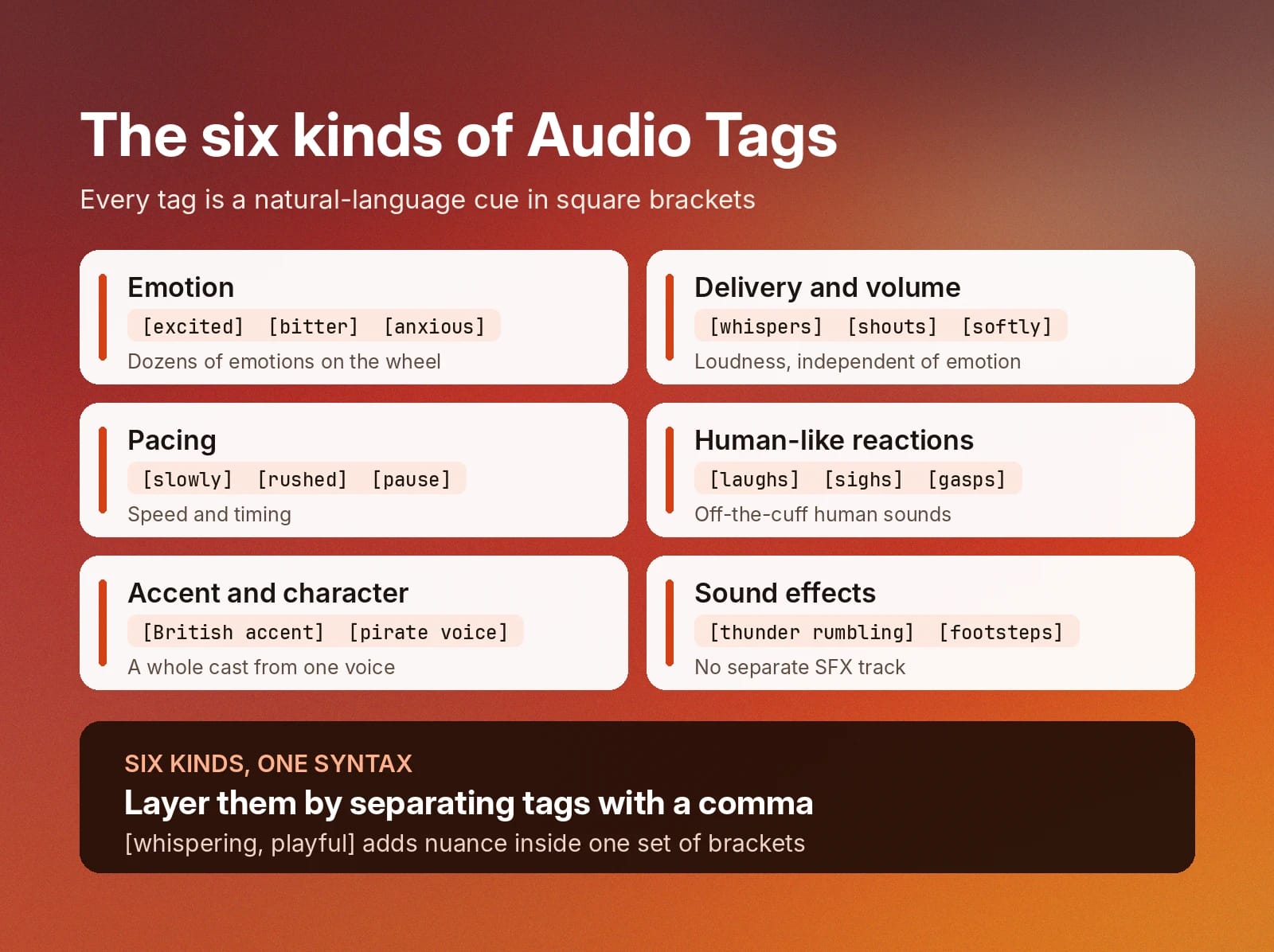
- Combine tags to layer direction: Separate Audio Tags with a comma inside one set of brackets, like [whispering, playful], to add nuance to your TTS performance.
- Pair tags with punctuation: While Audio Tags set the mood and delivery, you can control the pacing naturally by using punctuation in your script. Add ellipses, dashes, or capitals to shape the prosody of a line.
For a deeper explainer on how tags work and how they replace SSML, we’ve written a complete guide to Audio Tags.
Emotion Audio Tags list
The Eleven v4 emotion wheel features dozens of emotions, each performed by v4 so you can hear the difference before you write a single tag.
Click any emotion below to hear it on the wheel, or play around directly with the sentence and emotion to hear Eleven v4 bring emotional Audio Tags to life.
Emotional family | Emotion Audio Tags |
High energy | [excited], [playful], [amazed], [powerful], [proud], [optimistic], [startled] |
Heated | |
Tense | [anxious], [stressed], [scared], [threatened], [vulnerable], [confused], [busy] |
Low energy | |
Calm and reflective |
While we’ve featured a handful of emotions here, you can use natural language to implement any emotions that you’d like. In the example below, we’ve used a range of Audio Tags that aren’t featured above to show off what you can do with natural-language prompting.
This sample was brought to life with Jonathan Livingston.
Delivery and volume Audio Tags list
Delivery and volume tags control how loud or intense a line sounds, independent of the emotion you choose to attach to it. If you want v4 to follow a more specific vision, then layer in delivery and emotion tags for more granular control.
Here are a few examples:
- [whispers] Don't move, it’s right behind you.
- [shouts] Everybody evacuate the building, now!
- [softly] You did everything you could.
- [quietly] I think they've gone.
- [low, threatening] You really shouldn't have come here.
Let’s see volume and delivery control in action.
The sample above was brought to life with Rod.
Pacing Audio Tags list
Pacing Audio Tags change the speed of a line. Add them in to create suspense or set up the perfect comic moment. When timing matters as much as the words themselves, you should use pacing tags.
As a bonus tip, punctuation naturally helps with text to speech performance, so double up here to exercise full control over the sentence:
- [slowly] And the winner is...
- [rushed] Sorry, I'm late, the train broke down, I ran the whole way.
- [pause] Then the phone rang.
- [drawn out] Nooo way.
Adam was the voice that brought this sample to life.
Human-like reaction Audio Tags list
Reaction tags add sounds like laughter, gasps, crying, coughs, and sighs to your sentences. These really bring your text to life and make a TTS audio sample sound natural, like a person speaking off the top of their head instead of from a script.
Here are some reaction Audio Tags:
- [laughs] You actually fell for that?
- [sighs] Fine. I'll do the dishes.
- [gasps] Is that a real diamond?
- [clears throat] If I could have everyone's attention.
- [crying] I didn't think you'd come back.
Eleven v4 also adds small human touches when the emotion calls for them. Listen to the emotion wheel and you'll hear lines like "Y- you came back?" and "Ugh, this is real?" where v4 added a stammer or a groan on its own.
To use this voice in your own productions, look for Jack John.
Accent and character Audio Tags list
Building out rich scenes with different accents or character voices is easier than ever with Eleven v4. With a handful of Audio Tags, you can shift a voice into a new persona while maintaining its underlying qualities. One voice can play a whole cast in a single generation.
- [British accent] Fancy a cup of tea?
- [French accent] Welcome to my little café.
- [Australian accent] No worries, mate, we'll sort it out.
- [pirate voice] Hoist the sails and pass the rum.
Lauren helped bring this sample to life.
Sound effects Audio Tags list
Sound effect Audio Tags introduce non-speech events directly into your generations. For example, if you were building out a narrative scene or a video game track, you could use these to dramatize without having a separate SFX track. That said, you can always use the AI sound effect generator if you’re looking for something specific.
- [thunder rumbling] It's getting closer.
- [footsteps] Someone's coming up the stairs.
- [door creaking] Hello? Is anyone home?
- [clapping] Thank you, thank you, you're too kind.
The voice in the clip above is Siren.
Write your own Audio Tags with natural language
Any of the Audio Tags we’ve displayed above is a great place to get started. But the magic of ElevenLabs TTS is that you can write any new Audio Tag in natural language to give extra context the model can use.
Alternatively, if no single-word tag captures what you’re after, write a more comprehensive direction.
- Combine emotions and qualities: [tense, cautious] or [whispering, fearful]
- Describe the manner: [like a sports commentator, speeding up]
- Describe the situation: [out of breath after running up the stairs]
- Describe the character: [a tired detective who has heard it all before]
- Describe the shift: [starting calm, then losing patience]
Bring your scene to life with Spuds Oxley.
Tips for choosing Audio Tags
Writing in natural language gives you extensive flexibility when crafting text to speech audio samples, but also means getting the perfect output can take some back-and-forth.
To make your TTS experience with Eleven v4 as smooth as possible, here are a few tips for working with Audio Tags:
- Listen before you write: Play a few emotions on the emotion wheel to hear how v4 interprets each one (or use it for inspiration), then pick the closest match for your line.
- Swap the tag before rewriting the line: If a delivery misses, try a neighboring emotion, like [let down] instead of [despair], and regenerate.
- Use one tag per clause: Contrasting tags on the same words can blur the performance. Add a new tag at the point where you want the emotion to change.
- Give the model a full scene: Eleven v4 performs better with context. With a window of up to 10,000 characters per generation in the Text to Speech app, you have space to build out layered directions to create magic in your scene.
- Start with a preset, then get specific. If [nervous] is close but not quite right, write out what's missing: [nervous, trying to sound confident].
But above all, jumping into the ElevenLabs TTS app and experimenting is the best way to bring yourself up to speed and start producing high-quality TTS audio.
Get started with immersive audio on Eleven v4
There is no definitive ElevenLabs Audio Tags list because you can create any combination you’d like by writing in natural language. Every tag in this list works on Eleven v4, but so will tags that you think of while writing your scene.
Pick one of the 17,500+ voices from the Voice Library, paste in your script, and add your first Audio Tag to get started.
Learn more about Eleven v4 or sign up to build out impressive audio performances.
FAQ about ElevenLabs Audio Tags
There’s no fixed limit on the number of ElevenLabs Audio Tags. The Eleven v4 emotion wheel features dozens of emotions you can hear before using them, but any of the common tags we’ve used in this list for delivery, accents, pacing, and more will work well in your scene. Write any tag you like in natural language to direct your line.
You can write your own Audio Tags in natural language and watch as Eleven v4 brings them to life. Descriptive tags like [whispering, nervous] and [hurried, impatient] can give your audio samples real character. Experiment in the TTS app to see how your Audio Tags perform with different voices.
Both Eleven v3 and Eleven v4 use Audio Tags (as opposed to SSML), meaning scripts you previously wrote for v3 will still work in v4. In fact, v4 handles Audio tags and consistently even better than previous models, helping you to create even more impressive final performances.
An Audio Tag is usually read aloud when the selected model doesn't support tags, or when the tag isn't formatted correctly. Check that Eleven v4 or v3 is selected in the Text to Speech app and that each tag uses square brackets, like [excited], instead of parentheses or curly braces. If in doubt, you can regenerate specific lines in your script to fix things.
Audio Tags work through the ElevenLabs Text to Speech API on Eleven v4 (eleven_v4), Eleven v4 Turbo (eleven_v4_turbo) for real-time use, and Eleven v3 (eleven_v3), and you add them inline in the text of any Create speech, Stream speech, or Text to Dialogue request. Write each tag as a clear, descriptive instruction, like [low, gravelly voice], so the model treats it as delivery direction instead of a sound effect.
- Artificial Analysis, Provider Voice Arena Preference Elo, September 30, 2026
Written by

Jack Limebear is on the Growth team, acting as a content writer and strategist across the blog and insights pages. Before ElevenLabs, he spent over a decade leading content strategy for organizations ranging from fast-growing SaaS startups to Fortune 500 companies. He holds a Master's degree in English Literature from the University of Cambridge.
More from ElevenLabs
-
How we solve 22,000 support tickets every month with ElevenAgents
Oct 13
-
Baroness Campbell gives the UK Parliament’s first ever AI-voiced speech with ElevenLabs
Oct 13
-
How to transcribe an interview: Accurate, speaker-labeled transcripts
Oct 13
-
JavaScript speech recognition tutorial: Build voice UX
Oct 12
Discussion (0)
Sign in to join the discussion. Free account, 30 seconds — email code or GitHub.
Sign in →No comments yet. Sign in and be the first to say something.